
Email Marketing, BLOG, Marketing & SEO
How to Create Abandoned Cart Emails with Mailchimp in 7 Powerful Tips
Nov
When customers add products to their shopping carts but leave without completing their purchases, ecommerce businesses miss valuable sales opportunities. An abandoned cart email reminds shoppers about the products they left behind and encourages them to return to checkout.
Mailchimp helps businesses automate these reminders through customer journey flows and supported ecommerce integrations. Learning how to create abandoned cart emails with mailchimp allows you to build targeted follow-up campaigns, personalize product information, and encourage customers to complete their orders.
Understanding how to create abandoned cart emails with mailchimp also helps you turn customer shopping activity into relevant follow-up messages. This guide explains why cart recovery emails matter, how to set them up, and which best practices can improve campaign performance.
Why Are Abandoned Cart Emails Important for Ecommerce?
Abandoned cart emails help businesses reconnect with shoppers who have already shown interest in their products. Instead of focusing only on attracting new customers, stores can use cart recovery emails to encourage potential buyers to complete unfinished purchases.
Recover Potentially Lost Sales
Customers may abandon their carts because they get distracted, need more time to decide, or encounter unexpected shipping costs. A timely reminder gives them another opportunity to return to their saved products.
Although not every shopper will complete a purchase, abandoned cart recovery can turn some missed opportunities into additional sales. This is one reason businesses explore how to create abandoned cart emails with mailchimp as part of their ecommerce marketing strategy.
Remind Customers About Products They Like
Abandoned cart emails remind shoppers about products they previously considered buying. Including product names, images, and prices helps customers remember their selections and return to checkout.
When learning how to create abandoned cart emails with mailchimp, use shopping data to personalize reminders and make them more relevant.
Reduce Friction in the Purchase Process
Customers may hesitate to complete an order if they have questions about shipping, returns, or product details. A helpful reminder can address common concerns and provide a direct link back to checkout.
A clear call to action (CTA), such as “Return to Your Cart,” helps customers continue shopping with fewer steps. This simple approach can improve the overall checkout experience.
How to Create Abandoned Cart Emails with Mailchimp?

To understand how to create abandoned cart emails with mailchimp, start by connecting to a supported ecommerce store. Mailchimp uses shopping activity from eligible integrations to identify abandoned carts and trigger automated follow-ups.
Follow these seven steps to build your abandoned cart email automation.
Connect Your Ecommerce Store to Mailchimp
First, connect your online store to your Mailchimp account. Depending on your ecommerce platform, you may need to install a supported integration or configure a custom API 3.0 connection.
Before proceeding, check whether your integration supports abandoned cart triggers. Not every ecommerce integration provides the same features.
Once connected, confirm that relevant information, such as customer email addresses, cart details, and product data, can sync correctly.
A properly connected store is essential when learning how to create abandoned cart emails with mailchimp, because the automation needs accurate shopping activity to identify eligible customers.
Create an Abandoned Cart Automation Flow
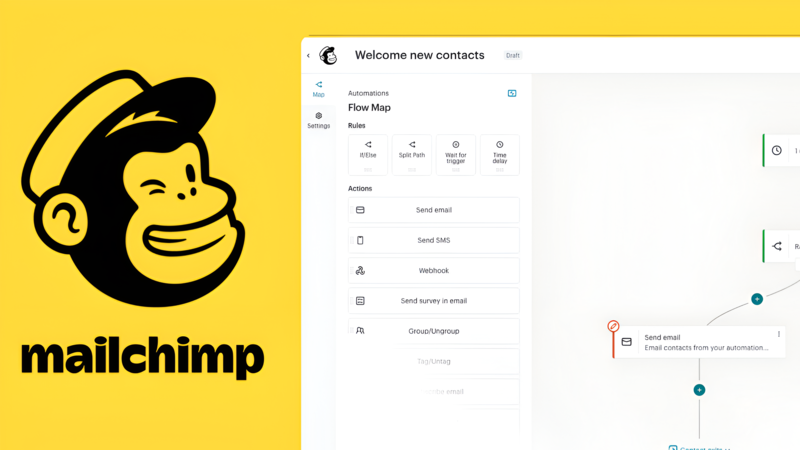
Open Automations in Mailchimp and choose the option to create a new flow. You can build one from scratch or select an available automation template.
Next, choose an abandoned cart trigger. Depending on your integration, available options may include:
- Abandons cart: Starts the flow when a customer leaves products in their cart without completing checkout.
- Abandons cart with specific products: Targets eligible customers whose carts contain selected products.
Select your connected store and configure the trigger conditions. You can also set a waiting period before the first reminder is sent.
This is an essential part of how to create abandoned cart emails with mailchimp because the trigger determines when customers enter your automation flow.
Design Your Abandoned Cart Email
After setting up the trigger, add a Send email action to your automation flow. Choose an appropriate template and customize the message to match your brand.
Mailchimp may provide a Cart content block that displays information from your connected store and links customers back to their abandoned carts.
Consider including:
- Your brand logo and colors.
- A short, friendly reminder.
- Product images and relevant details.
- A clear checkout CTA.
- Customer support information.
Keep the layout simple and mobile-friendly. Make sure shoppers can easily recognize their selected products and find the checkout button.
A clear design is an important consideration in how to create abandoned cart emails with mailchimp, as customers should be able to understand the message and return to checkout quickly.
Write a Relevant Subject Line and Email Message
Your subject line should remind customers about their unfinished purchases without sounding overly promotional.
Here are three examples:
- “You Left Something in Your Cart!”
- “Still Thinking It Over? Your Cart Is Waiting”
- “Ready to Complete Your Order?”
In the email body, use a friendly tone and focus on helping customers continue shopping.
For example:
“Hi there,
You left a few items in your shopping cart. They’re still waiting for you! Click below to review your selection and complete your order.”
You can also include a discount code when appropriate. However, avoid offering discounts in every reminder, as customers may begin waiting for promotions before purchasing.
When considering how to create abandoned cart emails with mailchimp, remember that helpful, relevant messaging is often more valuable than aggressive sales language.
Set the Email Timing
Choose how long Mailchimp should wait before sending the first reminder. The ideal timing depends on your products, customer behavior, and buying cycle.
A useful starting point is to test sending the first email within a few hours after cart abandonment. If you create a longer follow-up sequence, space additional reminders over the next few days.
Monitor customer responses and adjust your abandoned cart email timing based on campaign results rather than assuming one schedule works for every store.
Review and Test Your Automation
Before activating the flow, review its settings carefully. Check that:
- The correct ecommerce store and audience are selected.
- The abandoned cart trigger works as expected.
- Product information appears correctly.
- The checkout button links to the right cart.
- The subject line and sender details are accurate.
- The email displays properly on desktop and mobile devices.
You can also perform a test checkout using an email address you control to check whether cart information is captured and the automation behaves as expected.
Testing is an important part of how to create abandoned cart emails with mailchimp because it helps identify configuration problems before customers receive the messages.
Activate and Monitor Your Campaign
Once everything is ready, review the flow and activate your automation.
After launch, monitor its performance using available campaign analytics. Pay attention to clicks, conversions, attributed revenue, and other relevant metrics.
Reviewing these results helps you understand whether your approach to how to create abandoned cart emails with mailchimp encourages customers to return and complete their purchases.
Best Practices for Effective Abandoned Cart Emails
Setting up automation is only the beginning. To improve your cart recovery strategy, focus on relevant messaging, customer experience, and regular performance reviews. These practices can help you get better results from how to create abandoned cart emails with mailchimp.
- Personalize your message: Use available customer and product information to make reminders more relevant.
- Keep emails concise: Highlight abandoned products and make the next action clear.
- Use a strong CTA: Choose direct wording such as “Complete Your Purchase” or “Return to Your Cart.”
- Optimize for mobile: Use readable text, clear product images, and easy-to-tap buttons.
- Test different approaches: Experiment with subject lines, email timing, and promotional offers.
- Avoid excessive reminders: Keep your follow-up sequence helpful rather than overwhelming customers.
- Check email permissions: Follow applicable marketing consent requirements and Mailchimp’s contact eligibility rules.
You should also review your automation regularly to ensure that product details, checkout links, and store integrations continue working correctly.
Conclusion
Learning how to create abandoned cart emails with mailchimp helps ecommerce businesses reconnect with shoppers who leave products behind. By connecting your store, setting up an abandoned cart trigger, designing relevant messages, and monitoring campaign performance, you can build a more effective cart recovery strategy.
Understanding how to create abandoned cart emails with mailchimp gives you a practical way to automate customer follow-ups and improve the shopping experience. Start with one simple reminder, review how customers respond, and refine your timing and messaging over time. With consistent optimization, Mailchimp abandoned cart emails can become a valuable part of your ecommerce email marketing strategy.
FAQs
1. What Do I Need Before Creating Abandoned Cart Emails in Mailchimp?
You need a Mailchimp account, a connected ecommerce store or supported custom API 3.0 integration, and access to the necessary automation features. Your integration must support abandoned cart triggers.
2. Can I Send Multiple Abandoned Cart Emails with Mailchimp?
Yes. You can add multiple email steps to a Marketing Automation Flow, depending on your plan and setup. However, contact eligibility and subscription status can affect which emails recipients can receive.
3. Does Mailchimp Automatically Track Abandoned Carts?
Mailchimp can use shopping activity from supported ecommerce integrations to identify eligible abandoned carts. Your store connection and trigger configuration must be set up correctly for the automation to work.
4. Why Are My Abandoned Cart Emails Not Being Sent?
Possible reasons include an unsupported ecommerce integration, incorrect trigger settings, incomplete customer information, or contact eligibility restrictions. Review your store connection, automation flow, and email permissions to identify the issue.
