Facebook Advertising, BLOG, Marketing & SEO
Mailchimp Facebook Ads: 6 Essential Tools and Where to Find Them
Nov
Looking for Mailchimp Facebook ads in Mailchimp for small business? The advertising tools are available across different sections of your account. Knowing where to find them makes it easier to connect Meta, access customer data, and manage your campaigns.
The Meta Business Extension manages your advertising connection, while Mailchimp’s Audience, Automations, and Analytics sections provide customer information and performance insights. This guide shows you six important places to find these tools, including the settings you need for Facebook Advertising. Follow each navigation path to access the right feature without wasting time searching through menus.
Where Can You Find Mailchimp Facebook Ads Settings?
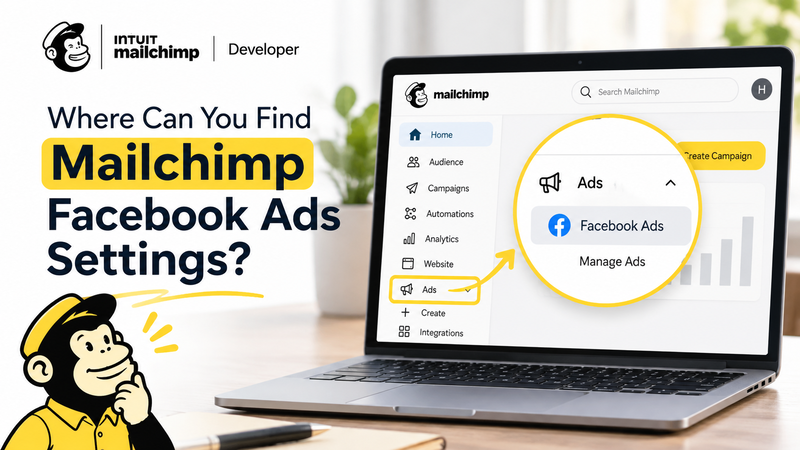
Start with the Meta Business Extension and your connected store. These areas provide access to the main settings and customer data used for Facebook advertising.
Find the Meta Business Extension App Page
Go to Mailchimp → Integrations → Manage → Meta Business Extension.
Open the app page to access your advertising connection settings:
- Connect: Link your Meta business account.
- Disconnect: Remove the existing connection.
- Create Ad: Continue to Meta to build an advertisement.
- Done: Finish the connection and return to Mailchimp.
The Meta Business Extension connects your Mailchimp account with Meta, including your ad account, Meta Pixel, and Custom Audience.
Locate Your Connected Store Settings
Open Integrations → Manage and find your connected ecommerce platform, such as Shopify or WooCommerce.
Select the store integration to review its connection details. Your store syncs customer and order data with Mailchimp, supporting pre-built segments, ecommerce reports, and Conversion Insights.
Check that your store is connected and syncing data before accessing these features.
Where Do You Find Customer Segments, Automations, and Reports?
Mailchimp stores its ecommerce features in separate sections. Use these navigation paths to access each one.
Find Pre-Built Customer Segments
Go to Audience → Segments to view your customer groups.
With a connected ecommerce store, Mailchimp provides six pre-built segments:
- First-time Customers
- Repeat Customers
- Lapsed Customers
- High-value Customers
- Recent Customers
- Potential Customers
Select a segment to view matching contacts. These groups help you identify customers for different Facebook advertising campaigns.
Locate Automation Flows and the Custom Audience Action
Open Automations and select an existing flow or create a new one.
On the Standard plan or higher, you can add the Meta Custom Audience action to send matching contacts to a Meta audience.
To find it, open the flow editor, select the action menu, and look for Custom Audience. If the option is unavailable, check your subscription and Meta connection.
Find Ecommerce Reports and Conversion Insights
Follow this path:
Analytics → Reports → View Report → E-commerce
Open the E-commerce tab to review store-related results. The Net revenue metric excludes shipping and taxes.
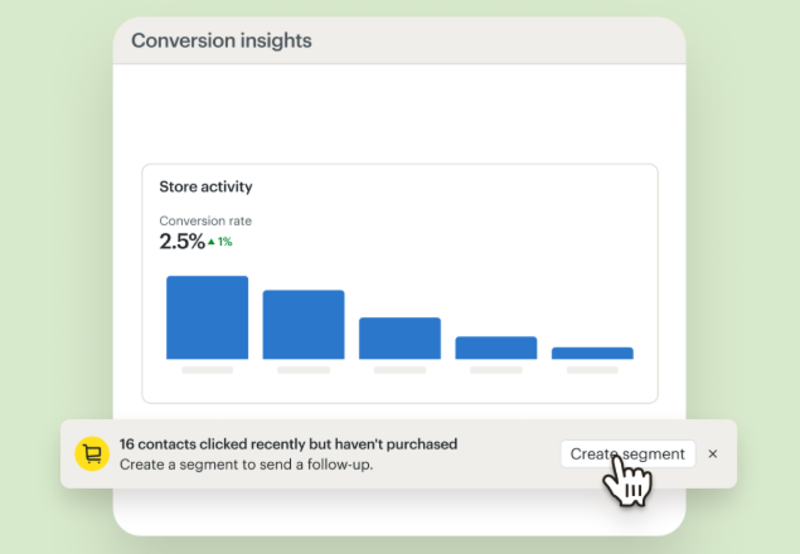
For additional information, look for Conversion Insights. This feature requires a connected store and the Standard plan or higher. It provides insights such as revenue per recipient and predictive segments.
Where Do You Manage and Troubleshoot Facebook Ads?
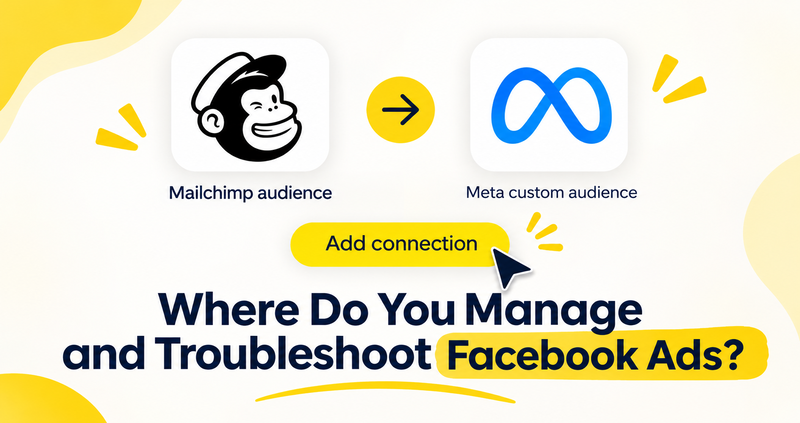
Mailchimp manages customer data and integration settings, while Meta handles advertising campaigns. Use the following locations to manage and troubleshoot your ads.
Open Meta Ads Manager to Manage Your Campaigns
To manage live ads, open Meta Ads Manager rather than searching through Mailchimp’s Analytics section.
Here, you can access:
- Campaign budgets and schedules
- Ad delivery and pause settings
- Audience and placement settings
- Advertising performance reports
Monitor reach, click-through rate, cost per click, and conversion rate to evaluate campaign performance.
Your advertising spend goes to Meta, while your Mailchimp subscription is billed separately.
Disconnect or Reconnect Your Meta Account
If your connection stops working, return to Integrations → Manage → Meta Business Extension in Mailchimp and click Disconnect.
To remove the app’s access from Meta, open Meta Business Manager, go to Business settings → Integrations → Connected apps, find Mailchimp, and select the removal option if available.
To reconnect, return to the Meta Business Extension page in Mailchimp, click Connect, and approve the requested permissions.
Conclusion
You can now find the six key locations for Mailchimp Facebook ads in Mailchimp for small business without wasting time searching through unrelated menus. Start with Integrations → Manage → Meta Business Extension to manage your advertising connection. Then, visit your connected store settings to check ecommerce data, Audience → Segments to manage customer groups, Automations to access Custom Audience actions, and Analytics → Reports to review ecommerce performance. For campaign budgets, delivery, and ad management, use Meta Ads Manager.
Bookmark this guide so you can quickly return to the right settings whenever you need to manage your Facebook Advertising activities and keep your marketing workflow organized.
FAQ
1.Where do I find Mailchimp Facebook ads?
Open Integrations → Manage → Meta Business Extension in Mailchimp. This is where you access your Meta advertising connection. For organic Facebook posts, use the separate Facebook integration.
2.Where can I find Facebook ad results in Mailchimp?
Go to Analytics → Reports → View Report → E-commerce for store-related results. For advertising metrics such as reach, clicks, and cost per click, open Meta Ads Manager.
3.Where are Mailchimp’s ecommerce customer segments?
Open Audience → Segments to view your customer groups. Pre-built ecommerce segments require a connected store and synced customer data.
4.Do I need the Standard plan to access Mailchimp Facebook ads tools?
No. All Mailchimp Marketing plans support installing the Meta Business Extension. However, the Custom Audience action in automation flows and Conversion Insights require the Standard plan or higher.
