Facebook Advertising, BLOG, Marketing & SEO
How to Connect Mailchimp to Facebook Ads: 5 Myths Busted
Nov
Connecting Mailchimp to Facebook ads can help small businesses use their customer data more effectively for advertising. However, before connecting the two platforms, it is important to understand how the integration works, what permissions you need to approve, and which tools manage your audiences and campaigns.
This guide explains how to connect Mailchimp to Facebook ads in small business workflows, including the key setup requirements and permissions to review. You will also learn how Mailchimp manages your contacts and audiences while Meta handles ad delivery and campaign management. Understanding these differences will help you connect both platforms with greater confidence and avoid common setup mistakes.
What Does It Really Mean to Connect Mailchimp to Facebook Ads?
Connecting links your Mailchimp data to your Meta accounts. Meta still runs the ads. That one idea is the base of how to connect Mailchimp to Facebook ads.
Mailchimp Links Data, Meta Runs Ads
The link is called the Meta Business Extension. It connects one Mailchimp account to one Meta business account. Through it, your customer list syncs to Meta as a Custom Audience. Meta then knows which people already shop with you.
Think of two roles. Mailchimp is the data keeper. Meta is the ad runner. Neither replaces the other.
Myth 1: “Connecting Lets Mailchimp Run My Ads”
This myth is false. Meta delivers the ads. Meta also holds the budget, the pause button, and the ad reports. Mailchimp’s help pages do not describe those screens, so follow Meta’s own guides for them.
At the end of the connection, you can click Create Ad to build an ad in Meta. Or click Done and build it later. Knowing this split is half of how to connect Mailchimp to Facebook ads without surprises.
Myth 2: “I Need an Expensive Plan to Connect”
This myth is also false. All Mailchimp Marketing plans can install the extension. Some Meta and Instagram features depend on your plan.
The Standard plan or higher adds the Meta Custom Audience action in flows and Conversion Insights, with a connected store. You can connect first and upgrade later. Prices change often, so check Mailchimp’s pricing page. That choice keeps how to connect Mailchimp to Facebook ads low in cost and low in stress.
How Do You Connect Mailchimp to Facebook Ads Without Getting Lost?
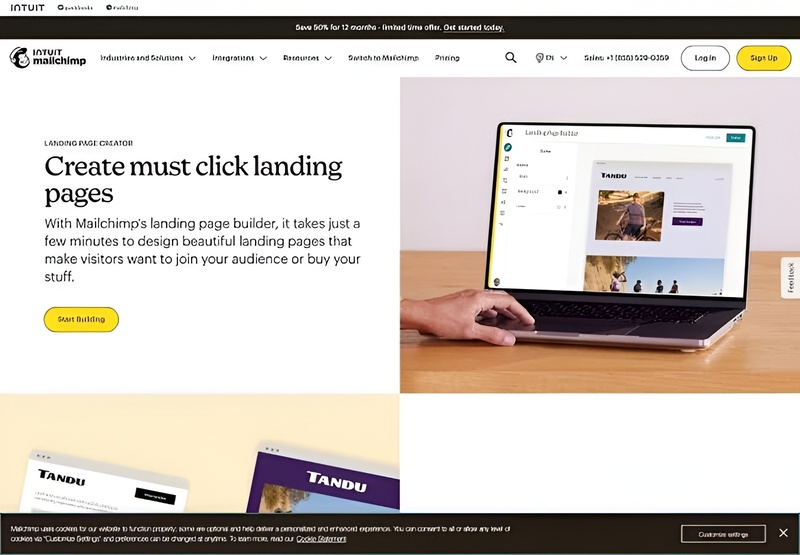
Open the extension app page, log in to Facebook, approve the permissions, and choose your business assets. Five short steps cover how to connect Mailchimp to Facebook ads.
Myth 3: “Any Facebook Account Works”
This myth causes the most trouble. A login alone is not enough. You need three items first:
- An active Meta Business Manager account
- A Meta ad account
- A customer list Custom Audience
Meta also considers the age of a Business Manager account when it decides who can create a customer list Custom Audience. A brand-new account can face limits, so create yours early. Check these three items before you learn how to connect Mailchimp to Facebook ads any further.
The Steps in Plain Words
Here is the path, with a plain meaning for each step:
- Open the Meta Business Extension app page in Mailchimp and click Connect. This starts the link.
- Log in to Facebook, or create an account. This proves who you are.
- Confirm your account name. This checks you picked the right person.
- Review the permission requests and continue. This tells Meta what Mailchimp may do.
- Choose your Business Manager account, Facebook Page, Instagram profile, ad account, and Meta Pixel. This picks the assets that will work together.
These five assets are meronyms of your Meta business setup, the holonym. Pick the ones you really use. That simple care is how to connect Mailchimp to Facebook ads in the right order.
What the Confirm Screen Really Asks
The last screen lists your choices. Read it twice. It also offers automatic advanced matching. This setting is optional. It matches your customer details with people on Facebook.
Then you pick a button. Click Create Ad to build an ad in Meta, or Done to return to Mailchimp. Meta runs the ads, and Mailchimp’s help pages do not describe those screens. Take the next step slowly. That is the calm way to connect Mailchimp to Facebook ads.
What Should You Know After You Connect?
Two more myths show up after the link is live. Both are easy to clear up. Knowing them finishes how to connect Mailchimp to Facebook ads the right way.
Myth 4: “I Can Change Permissions in One Click”
This myth is false. You approve each permission request when you connect. To change one later, you disconnect and then reconnect. Mailchimp’s page describes only that path.
To disconnect, follow two short steps:
- In Mailchimp, open the Meta Business Extension app page and click Disconnect.
- In Meta Business Manager, open Business settings, then Integrations, then Connected apps, and click Remove app.
Connect and disconnect are antonyms, and you may use both. Then reconnect and approve each permission again. Knowing this removes a big fear about how to connect Mailchimp to Facebook ads.
Myth 5: “One Connection Covers Every Account I Own”
This myth is false too. Only one Mailchimp account can connect to one Meta business account. If you run two shops with two accounts, plan each link on its own.
Also know where results live. Meta reports on reach, click-through rate, and cost per click. For email sales, open Analytics, then Reports, then View Report, then the E-commerce tab. Net revenue there leaves out shipping and taxes. Keep both views in mind as you learn how to connect Mailchimp to Facebook ads and read the results.
Conclusion
So, those are the five myths. Mailchimp does not run your ads. You do not need a big plan. A login alone is not enough. Permissions change by reconnecting. One connection covers one Meta business account. Now you know how to connect Mailchimp to Facebook ads in Mailchimp for small business without the fear I felt. Take it one screen at a time, read each permission, and keep the Meta Business Extension app page bookmarked. I hope how to connect Mailchimp to Facebook ads feels lighter for you than it did for me.
FAQ
1.Do I need a Business Manager account to connect Mailchimp to Facebook ads?
Yes. You need an active Meta Business Manager account, an ad account, and a customer list Custom Audience. During the connection, you can choose a Business Manager account or create one. That is the first thing to know about how to connect Mailchimp to Facebook ads.
2.Will connecting start my ads automatically?
Mailchimp’s page describes two end choices: Create Ad, which builds an ad in Meta, and Done, which returns you to Mailchimp. Meta runs the ads, and Mailchimp’s help pages do not describe those screens. Check Meta’s screens before you spend.
3.What is automatic advanced matching?
It is an optional setting on the Confirm screen. It matches your customer details with people on Facebook. Clean contact data gives Meta better details to match.
4.How do I disconnect Mailchimp from Facebook ads?
In Mailchimp, open the Meta Business Extension app page and click Disconnect. Then open Meta Business Manager, go to Business settings, Integrations, Connected apps, and click Remove app. Learning how to connect Mailchimp to Facebook ads includes knowing how to undo it.
