Facebook Advertising, BLOG, Marketing & SEO
How Facebook Ads Work in Mailchimp for Small Business (5 Steps)
Nov
My email list was growing, but my sales were not. I wondered whether Facebook ads could help and whether Mailchimp could manage them. The answer turned out to be partly yes and partly no.
This guide explains how Facebook ads work in Mailchimp for small business owners through five simple steps. Mailchimp connects your contacts to Meta, allowing you to reach existing customers and similar audiences without needing a developer or a large budget.
How Do Facebook Ads Work in Mailchimp?
Facebook ads work in Mailchimp through a connection to Meta. Mailchimp holds your contact data. Meta delivers the ads. Here is how Facebook ads work in Mailchimp for small business, in plain words, starting with the tool behind it.
What Is the Meta Business Extension in Mailchimp?
The Meta Business Extension is a Mailchimp integration that connects your Meta and Instagram accounts to Mailchimp. It does three jobs:
- It syncs your audience data.
- It lets automation flows target Custom Audiences.
- It matches your Mailchimp audience with Meta custom ad audiences.
The extension enables advanced advertising tools on Meta and Instagram. Posts that you do not pay for are organic posts. Mailchimp handles those through a separate Facebook integration. Think of the extension as a bridge. Contact data moves from Mailchimp to Meta. Ads move from Meta to your contacts.
What Does Mailchimp Do and What Does Meta Do?
Mailchimp manages your contacts. Meta delivers your ads. That split is the core of how Facebook ads work in Mailchimp for small business.
Mailchimp handles:
- Your contacts and segments
- Audience syncing
- Automation flows
Meta handles:
- Your ad account and Meta Pixel
- Ad delivery on Facebook and Instagram
- Ad reports
For example, you group your best customers in Mailchimp. Meta then shows that group an ad about a new product. Mailchimp does not show the ad itself.
Mailchimp’s e-commerce reports cover revenue from Mailchimp campaigns. They do not replace Meta’s ad reports.
What a Small Business Needs Before Starting?
Prepare these items first:
- An active Meta Business Manager account
- A Meta ad account
- A customer list Custom Audience
- A Mailchimp Marketing plan
Any Mailchimp Marketing plan can install the extension. Some Meta and Instagram features depend on your plan. Meta also considers the age of your Business Manager account when it decides who can create a customer list Custom Audience. Write down your goal before you connect anything. A goal such as “bring back lapsed customers” keeps the work focused. These details shape how Facebook ads work in Mailchimp for small business accounts.
How Do You Set Up Facebook Ads in Mailchimp Step by Step?
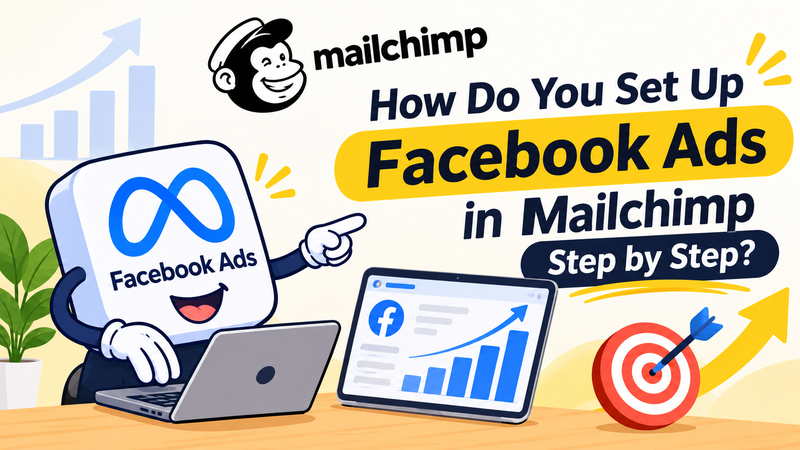
Five steps take you from connection to launch. The first three happen between Mailchimp and Meta. Follow them in order to see how Facebook ads work in Mailchimp for small business without setup errors.
Connect the Meta Business Extension
Have your Business Manager login ready. Connecting takes four moves:
- Open the Meta Business Extension app page in Mailchimp and click Connect.
- Log in to Facebook, confirm your account name, and review the permissions.
- Select your Business Manager account, Facebook Page, Instagram profile, ad account, and Meta Pixel.
- Check the settings on the confirmation screen.
Only one Mailchimp account can connect to one Meta business account. To change permissions later, disconnect and then reconnect.
Sync Your Audience and Turn On Advanced Matching
The confirmation screen offers automatic advanced matching. It matches your customer information with people on Facebook. Turn it on if you want Meta to match your contacts.
Clean your contact list first. Remove old or fake email addresses. Clean data gives Meta better information to match.
Build a Custom Audience From Your Mailchimp Contacts
A custom audience is a group of people that Meta matches from your own data. Start with a Mailchimp segment. If your store is connected, Mailchimp offers pre-built segments for First-time Customers, Repeat Customers, Lapsed Customers, and High-value Customers.
Automation flows also include an action that syncs contacts with a Meta Custom Audience. This action needs the Standard plan or higher. For example, build a segment of customers who have not ordered in 90 days. Use conditions such as Amount spent in total to find high-value customers. Then a flow can send lapsed customers to a win-back audience. That is a practical part of how Facebook ads work in Mailchimp for small business.
How Do You Run and Improve Facebook Ads With Mailchimp Data?
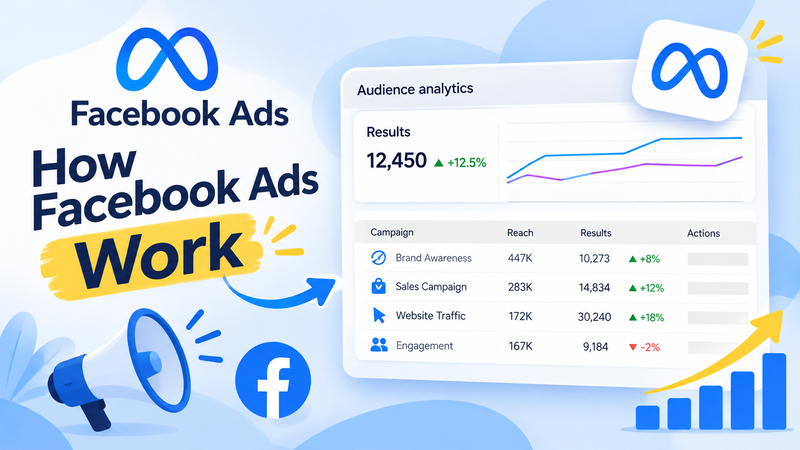
Launching is the easy part. Results come from fresh audiences and clear goals. Plan a monthly review of your segments, your messages, and your results. These habits show how Facebook ads work in Mailchimp for small business over time.
Launch Your Ad to the Synced Audience
Finish the connection screen by choosing to create an ad, or open Meta’s ad tools later. Choose your synced custom audience as the target. Start with a small budget and one clear goal, such as a repeat purchase. Write one short message for each segment. Keep the ad simple: one image, one message, and one button. Ask for one action only, such as “Shop the new collection.”
Track Results and Keep Your Audience Fresh
Check your ad results in Meta’s ad reports. Watch four numbers:
- Reach
- Click-through rate
- Cost per click
- Conversion rate
Compare each ad against its goal. A win-back ad should bring back lapsed customers, so judge it by repeat orders, not only clicks. Pause ads that do not work after a fair test. Change one thing at a time, such as the image or the message.
Use Mailchimp’s reports for your email results. Then refresh your segments every month, so your ads reach current customers. Steady checks are part of how Facebook ads work in Mailchimp for small business success.
Which Facebook Ad Ideas Work for Small Businesses?
Four ad ideas fit most small stores. Start with one:
- Win-back ad: a “we miss you” message for lapsed customers. Match the timing to how often they normally buy.
- Abandoned cart ad: a reminder about items left behind.
- VIP ad: early access for high-value customers, such as those with the highest total spent.
- New product ad: a launch message for repeat customers.
Each idea uses a segment you already know. Pick one, test it, and then add another. That is how Facebook ads work in Mailchimp for small business growth.
Conclusion
Now you know how Facebook ads work in Mailchimp for small business marketing. Connect your Meta account, sync a clean audience, and create ads for the right customers.Track performance regularly and refresh your campaigns when needed. Remember the five steps: connect, sync, build, launch, and track.
If you are unsure where to start, test one audience segment with one ad. Small, consistent experiments can help you understand what works, improve your targeting, and make better advertising decisions over time.
FAQs
1.Can I Create Facebook Ads Inside Mailchimp?
Mailchimp connects to Meta through the Meta Business Extension, and the setup ends with an option to create an ad. Meta still delivers the ads. Check your Mailchimp account to see which ad tools your plan shows.
2.Do I Need a Paid Mailchimp Plan to Use Facebook Ads?
Any Mailchimp Marketing plan can install the Meta Business Extension. Some Meta and Instagram features depend on your plan. The Meta Custom Audience action in flows needs the Standard plan or higher.
3.What Is a Custom Audience in Facebook Ads?
A Custom Audience is a group of people that Meta matches from your own data, such as a customer list. You use it to show ads to people who already know your business.
4.How Do I Disconnect Mailchimp From Meta?
Open the Meta Business Extension app page in Mailchimp and click Disconnect. Then open Meta Business Manager, go to Business settings, Integrations, and Connected apps. Click Remove app next to Mailchimp and confirm.
