
Email Marketing, BLOG, Marketing & SEO
How to Use Mailchimp for Online Stores in 6 Easy Steps
Nov
Running an online store involves many tasks, from promoting products to managing customer relationships. Keeping shoppers interested and encouraging repeat purchases can be challenging, especially with limited time.
Email marketing helps you stay connected with customers, but sending the same message to everyone may not be effective. Different shoppers have different interests and needs. A well-planned email strategy can help you communicate with each customer more effectively.
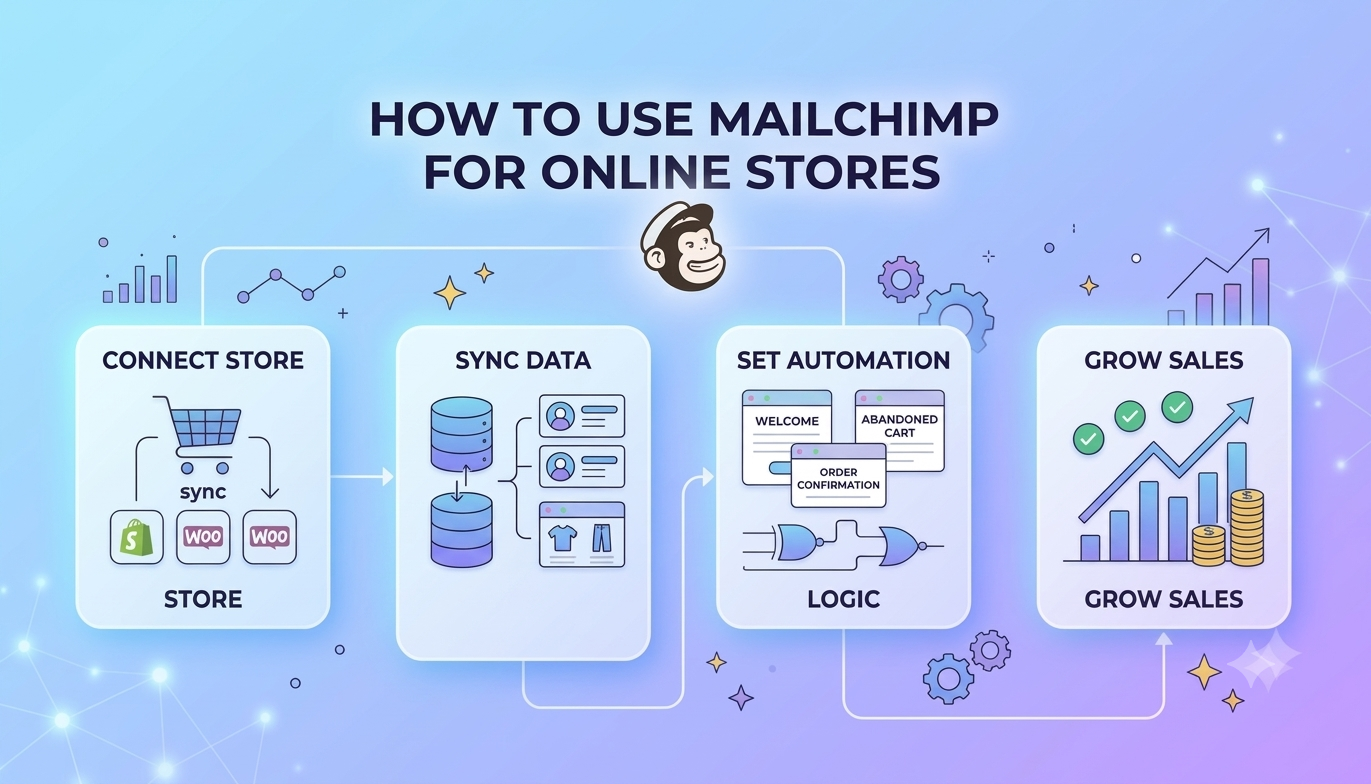
Mailchimp combines email marketing, audience management, and automation to make customer communication easier. Learning how to use Mailchimp for online stores can help you organize customer data, create targeted campaigns, and send timely follow-up emails.
This guide explains how to use Mailchimp for online stores through six practical steps, from connecting your ecommerce platform to tracking campaign performance.
How to Set Up Mailchimp for Your Online Store?
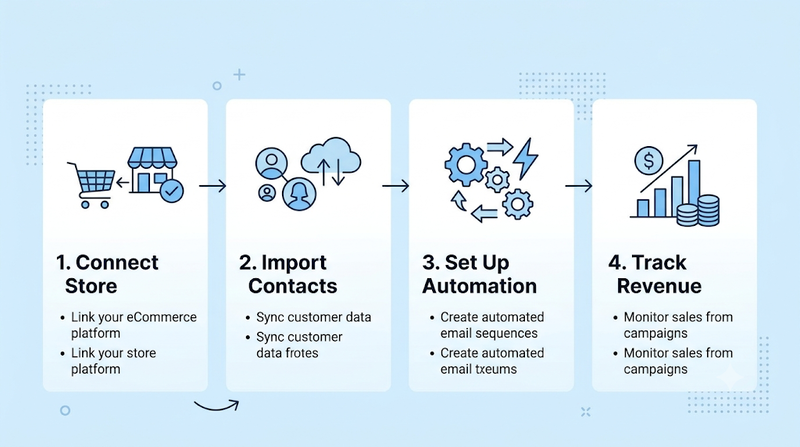
Before sending your first campaign, prepare your Mailchimp account and customer information. A good setup makes it easier to manage contacts and create relevant emails later.
Connect Your Ecommerce Store to Mailchimp
Start by connecting your online store to Mailchimp. This integration can help transfer available store information into your marketing account.
How to do it:
- Log in to your Mailchimp account.
- Open the integrations section.
- Search for your ecommerce platform, such as Shopify or WooCommerce.
- Select the relevant integration and follow its instructions.
- Review the requested permissions before completing the connection.
Depending on the integration, Mailchimp may sync customer details, product information, shopping activity, and order records. You can use this information to understand customer behavior and create more relevant ecommerce email marketing campaigns.
For example, a store owner may want to identify customers who purchased a particular product. This information can help when introducing related products or sharing useful product updates.
After connecting your store, check whether the data is syncing correctly. Make sure the right store and audience are selected. Remember that available data and features vary depending on your ecommerce platform and integration.
Understanding how to use Mailchimp for online stores starts with this connection because customer and order information can support more relevant marketing activities.
Organize Customer Data and Build Your Audience
A well-organized email list makes campaign management easier. Instead of treating every contact the same way, group subscribers based on their interests and shopping activity.
How to do it:
- Review your existing email contacts.
- Keep customer information accurate and up to date.
- Use tags to organize contacts by relevant details.
- Create segments for new subscribers, first-time buyers, and repeat customers.
- Collect and use contact information responsibly.
Mailchimp provides audience management tools such as tags and segments. Tags help label contacts, while segments group people based on shared conditions. With supported ecommerce data, you may be able to create segments using purchase activity.
For example, a skincare store could separate first-time buyers from repeat customers. New buyers might receive product care tips, while returning customers could receive updates about new items in their favorite category.
This is an important part of how to use Mailchimp for online stores because relevant messages are more useful than sending every promotion to your entire email list.
How to Use Mailchimp for Online Store Email Marketing?
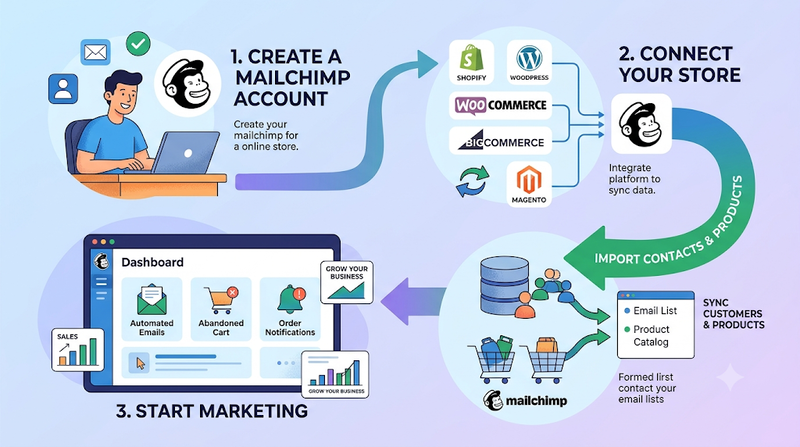
Once your store and audience are ready, you can start creating campaigns. Focus on sending emails that provide value instead of filling customers’ inboxes with constant promotions.
Create Promotional Emails and Ecommerce Newsletters
Email campaigns help you share store updates and introduce products directly to your subscribers. You can use them for new arrivals, seasonal promotions, special offers, and product announcements.
How to do it:
- Choose an email template in Mailchimp.
- Add your store logo and relevant product images.
- Write a clear and interesting subject line.
- Keep the message short and focused.
- Add a call-to-action button that links to your store.
- Preview and test the email before sending it.
A good ecommerce newsletter should have one clear purpose. Avoid adding too many products or unrelated promotions to a single message. Instead, organize the content around a collection, product category, or special announcement.
Example: A clothing store could send a newsletter featuring new summer arrivals. The email might include a few product images, short descriptions, and a button leading to the new collection.
You can also use audience segments to make promotional emails more relevant. For example, customers interested in accessories may receive a different product update from shoppers who usually purchase clothing.
When exploring how to use Mailchimp for online stores, remember that useful content matters as much as attractive design. You can share styling ideas, product care tips, or shopping guides alongside promotional offers.
Recover Abandoned Carts With Automated Emails
Some shoppers add products to their carts but leave before completing checkout. They may become distracted, compare prices, or simply need more time to decide. Abandoned cart emails can remind them about these unfinished purchases.
How to do it:
- Check whether your store integration supports abandoned cart data.
- Open the available automation tools in Mailchimp.
- Choose an abandoned cart workflow if your account supports it.
- Add product details and a link back to checkout.
- Write a friendly reminder.
- Review the email and activate the workflow if eligible.
A useful cart recovery email should be simple and helpful. Show the product the shopper left behind, include a direct checkout link, and use a friendly subject line.
You may also offer a discount, but this is not necessary for every reminder. Offering discounts too often can reduce your profit margin and encourage shoppers to wait for promotions.
For example, an online home decor store could send a reminder showing the lamp a customer added to their cart. A short message and a link back to the product may be enough to help the shopper continue checkout.
Keep in mind that abandoned cart automation requires a supported ecommerce integration and access to the relevant Mailchimp feature. Check your account and integration details before setting up the workflow.
Knowing how to use Mailchimp for online stores also means understanding which automation features are available for your specific ecommerce setup.
Send Welcome and Post-Purchase Email Sequences
Customer communication should continue after someone subscribes or places an order. Welcome and post-purchase emails help your store stay connected with shoppers throughout their buying journey.
How to do it:
For welcome emails:
- Thank new subscribers for joining.
- Introduce your store and main product categories.
- Explain what kind of emails they can expect.
- Include a link to explore your products.
For post-purchase emails:
- Share relevant order updates when supported.
- Provide product instructions or care tips.
- Recommend related products when appropriate.
- Invite customers to explore other collections.
For example, a skincare store could welcome new subscribers with an introduction to its product range. After a customer purchases a cleanser, the store might send useful care instructions and later introduce a suitable moisturizer.
These automated email workflows help reduce manual work and keep communication consistent. They can also support customer satisfaction and encourage repeat purchases.
However, avoid sending too many messages in a short period. Give customers enough time to read your emails and make their own decisions. The goal is to provide useful information, not pressure people into buying again.
How to Measure and Improve Your Mailchimp Ecommerce Results?
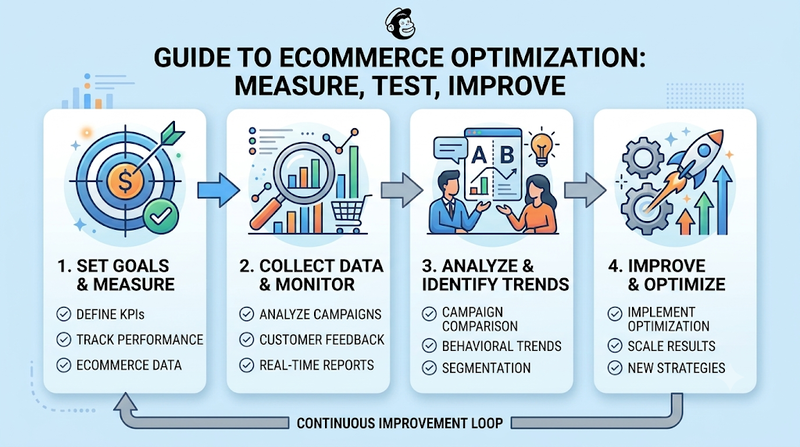
Creating and sending campaigns is only part of email marketing. You also need to review the results to understand what customers respond to.
How to do it:
- Open the campaign reports in Mailchimp.
- Review click-through rates and other engagement metrics.
- Check conversions and tracked sales when ecommerce reporting is available.
- Monitor unsubscribes and subscriber responses.
- Compare the performance of different campaigns.
Each metric can tell you something different. Click-through rates show whether recipients are clicking your email links. Conversion data can help you understand whether those visits lead to purchases. Ecommerce reports may also provide information about orders and revenue attributed to your campaigns, depending on your setup.
You can improve future campaigns through simple testing:
- Try different subject lines.
- Compare product images and email layouts.
- Test different call-to-action buttons.
- Send different messages to first-time and repeat customers.
For example, you could test two subject lines for a new product announcement. One version might focus on the product benefit, while the other highlights a limited-time offer. Comparing the results can help you understand which message attracts more clicks.
Do not focus on one metric alone. Look at the overall customer response and make small improvements over time. Reviewing these results is another important part of how to use Mailchimp for online stores because it helps you understand which campaigns deserve further improvement.
Conclusion
Learning how to use Mailchimp for online stores starts with six practical steps: connect your store, organize customer data, create email campaigns, recover abandoned carts, send automated follow-ups, and track results.
Mailchimp can help you manage audiences and stay connected with shoppers. Start with a welcome email or newsletter, then explore automation and customer segmentation as your store grows. Focus on sending useful messages that build lasting customer relationships.
With a consistent approach, how to use Mailchimp for online stores becomes easier to understand and apply to your everyday marketing activities.
Frequently Asked Questions
1. Can You Use Mailchimp for an Online Store?
Yes. Mailchimp supports ecommerce email marketing, audience management, and marketing automation through supported store integrations. It can help online businesses understand how to use Mailchimp for online stores to organize contacts and create targeted campaigns. Available features depend on your platform and account setup.
2. How Do I Connect Shopify or WooCommerce to Mailchimp?
Open the integrations section in your Mailchimp account and search for Shopify or WooCommerce. Select the relevant integration and follow the connection instructions. After setup, review which customer and order information can sync with your account.
3. Can Mailchimp Automatically Send Abandoned Cart Emails?
Yes, if your ecommerce integration supports the required cart data and your account has access to the feature. You can create an automated reminder with product details and a link back to checkout. Check your integration and account eligibility before activating the workflow.
