Facebook Advertising, BLOG, Marketing & SEO
Mailchimp Official Website: 7 Pages for Facebook Advertising
Nov
Have you ever searched for a login page only to land on the wrong site? That brief moment of panic happens to many busy business owners. This guide will show you where to find the Mailchimp official website and the key pages that matter most for small business Facebook advertising.
Think of it as a quick tour rather than a sales pitch. You’ll explore seven pages, starting with the web address itself and ending with Facebook advertising guides. By the end, you’ll know exactly where to go on the Mailchimp official website and what each page can help you do.
This guide is designed for small business owners, freelancers, and shop owners who run or plan to run Facebook ads with Mailchimp. No technical skills are required. All you need is a browser and a few minutes.
The Way How to Find the Mailchimp Official Website Safely
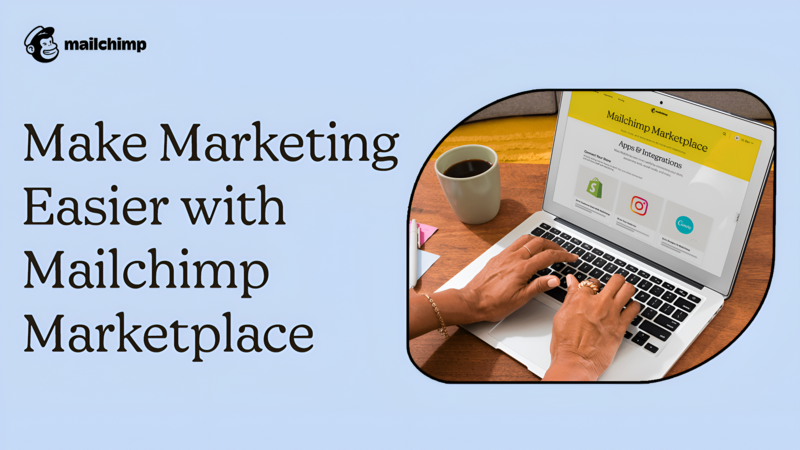
Finding the Mailchimp official website is easy when you know what to look for. A safe start also saves you trouble later.
The Mailchimp Official Website Address
The main web address is mailchimp.com. Type it into your browser’s address bar. The domain you see should read exactly that. The top menu has the buttons you’ll use most, including Log In and Start Free Trial.
Mailchimp began in 2001. Today, it belongs to the company behind other business software, such as TurboTax and QuickBooks. You may also see Mailchimp help articles on its own website. That’s normal, because Mailchimp owns it. The site is also available in several languages, so you can switch to the one you prefer. Still, for your first visit, type the address yourself.
The Way How to Spot Fake or Look-Alike Mailchimp Pages
Sadly, fake pages exist for almost every popular brand. They often copy the look of the official page. Here’s how to stay safe:
- Read the web address before you type a password.
- Check that the address starts with https and shows the right domain.
- Type the address yourself, or use a saved bookmark.
- Be careful with links in unexpected emails, texts, or ads.
- Never share your password with someone who contacts you. A real support team usually doesn’t ask for it.
- Pause when a message sounds urgent, such as “Your account will close today.” Scam emails often use urgent messages. You can check a real notice by logging in on your own.
If something feels wrong, close the page. Go to mailchimp.com directly, and log in from there. That’s the safest way to reach the Mailchimp official website.
The Key Pages on the Mailchimp Official Website for Small Businesses
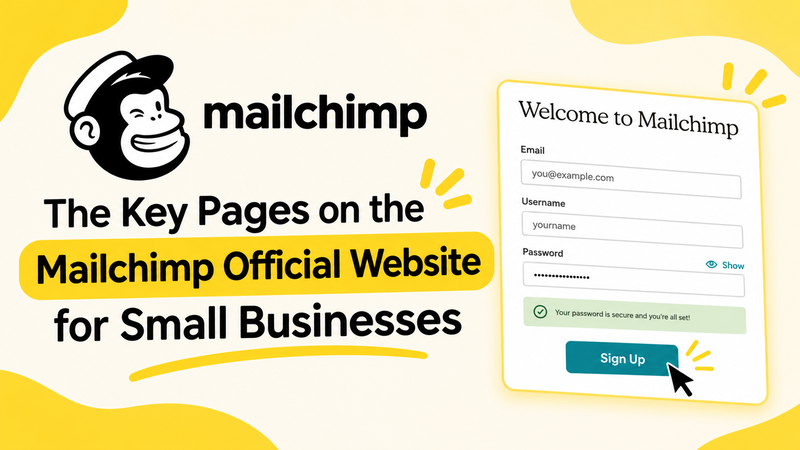
Think of the Mailchimp official website as a single hub with different sections, each designed for a specific purpose. Here are the areas that small businesses use most, along with what each one can help you do.
Log In and Start Free Trial
Use Log In if you already have an account. It points to login.mailchimp.com. Use Start Free Trial if you’re new. It leads to the sign-up page. Both buttons sit in the top menu of the Mailchimp official website.
Existing users and new users take different doors, so pick the right one. Always log in from the official address. Keep your password private, too. If you forget it, start from the Log In page and look for the reset option. Don’t use links from emails you didn’t expect.
Pricing and Plans Pages
Prices change, so check the pricing page instead of trusting old numbers. At the time of writing, the page mentions a 15% discount for nonprofits and charities. Requests go through Mailchimp’s billing team. Details can change, so read the page itself. The Help Center has a plans and pricing section as well. It explains how to change or pause your plan. Some plan terms look confusing at first, so read the explanations before you choose.
Plans matter for Facebook advertising, too. All Mailchimp Marketing plans can install the Meta Business Extension, but some features depend on your plan. The Meta Custom Audience action needs the Standard plan or higher.
Help Center and Support
The Help Center is the best place to learn. It has guides for setting up your account, building your audience, and creating your first email. Try short search phrases, such as “Meta Business Extension.” They usually work better than long questions. Many help articles also show an “updated” note near the top. Use it to judge how fresh the advice is.
Need a person? Support options include email, chat, and phone, depending on your pricing plan. In your account, open the Help & Support panel and click Contact Us. Describe what you need, then choose how you want to be contacted. The Help Center also has an article on support options that explains the choices.
Three more pages deserve a bookmark. The Features page shows what Mailchimp can do. The Integrations page connects it to other tools. The Resources page offers articles and guides. Case Studies show how other businesses use Mailchimp, and they can spark ideas.
Where to Find Facebook Advertising Help on Mailchimp’s Official Website
Facebook advertising help lives in a few places. This section shows you where to look on the Mailchimp official website. Ads need extra setup, and Mailchimp’s guides explain it step by step.
Find the Meta Business Extension and Facebook Integration Guides
Open the Help Center and search for Meta Business Extension. This tool connects Meta and Mailchimp. It supports paid ads and custom audiences. Next, search for Facebook integration and Create a Social Post. These guides cover organic posts on Facebook, Instagram, and X.
Think of it as two tools. One is for ads, and the other is for posts.
Here’s a simple routine. Open the Help Center and use its search bar. Scan the search results, and open the one that matches your goal. Then read the requirements at the top of the article. This takes a few minutes and saves a lot of guessing.
To keep an ad audience fresh, search for Meta Custom Audience action. It adds contacts to a custom audience or removes them. For lead growth, search for Facebook Lead Ads. They can add new subscribers to your Mailchimp audience through Zapier.
Check the Date and Your Plan Before You Follow a Guide
Many help articles show when they were last updated. Check that date first. Some resource articles about Facebook ads were written years ago. They may describe tools that have changed. So prefer newer help guides over older blog-style articles. Meta also changes its tools often, so even good guides can go out of date. If a screen looks different from the guide, trust what you see. Then search for a newer article, or ask Mailchimp support.
Then check the plan requirements. A guide may fit one plan but not another. Finally, respect consent. Use only contacts who agreed to receive marketing before you build a custom audience.
Conclusion
You’ve now seen seven pages: the address, the safety check, login and trial, pricing, help, the Facebook guides, and the date check. Each one makes your visit to the Mailchimp official website faster and safer.
Start from the official address every time. Bookmark the pages you use most. Facebook advertising can feel big. Starting from the right pages makes it feel small again. That’s how small business owners get the most from the Mailchimp official website, and from Facebook advertising too.
Frequently Asked Questions
1. What is the Mailchimp official website?
The main address is mailchimp.com. Mailchimp is owned by . Always start from that address, and bookmark it. The Mailchimp official website has pages for login, pricing, help, features, integrations, and resources.
2. Where do I log in to Mailchimp?
Go to mailchimp.com and click Log In in the top menu. It leads to the official login page. Type the address yourself rather than clicking links from unexpected messages. If you forget your password, start from that page.
3. Where can I find Mailchimp’s Facebook advertising help?
Search the Help Center for “Meta Business Extension” for ads and custom audiences. Search for “Facebook integration” for organic posts. Check the updated date on each guide before you follow it. The Meta Business Extension also needs a Meta Business Manager account and an ad account, so read the requirements first.
4. How do I contact Mailchimp support?
Open the Help & Support panel in your account and click Contact Us. Describe what you need help with, then choose email, chat, or phone. Your pricing plan decides which options you can use.
